


Jump to section
Video overview
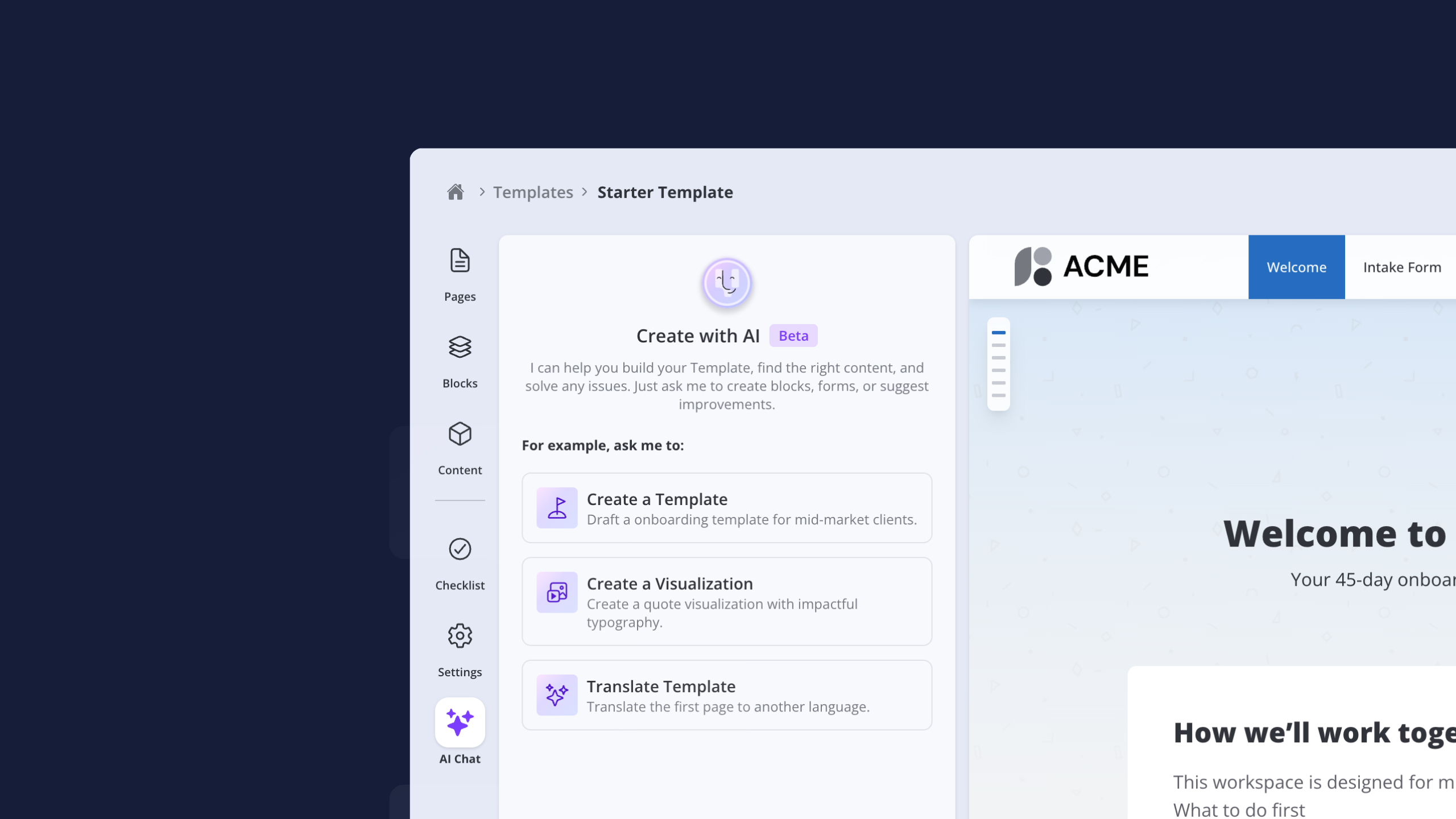
AI Chat: Build Spaces 10x Faster
Our new AI chat lets you build and edit Spaces with natural language – it's 10x faster than doing things manually, especially for big changes.
The AI has access to most Valuecase features and can read the content of your Spaces and Templates. Ask it to add pages and blocks, update content, reorder items, or batch-edit multiple elements at once. Try something like "add an onboarding checklist with 5 tasks" and watch it appear in seconds.
Common use cases:
Build entire templates from scratch – give it a prompt like "create a customer onboarding template" and watch it create pages, action plans, and blocks automatically.
Translate your Spaces – ask it to translate pages or entire templates to different languages in seconds, making it easy to work across markets.
Personalize Spaces for customers – paste a discovery call transcript and ask the AI to adapt your Space to focus on the customer's specific priorities.
The AI updates you while it's working, and you can undo any changes and try again if you're not happy with the results. To get started, open any Space or Template, click the AI icon in the left sidebar, and pick one of the example prompts.
A Completely Redesigned Editor
We rebuilt the Valuecase editor to feel lighter, faster, and easier to navigate. The new design features better contrast and higher clarity throughout.
The biggest change: a new left sidebar replaces the old top bar navigation. This makes it immediately clear whether you're working at the page level, managing blocks, or editing a specific element. You'll also find the activity feed, settings, and the new AI chat all accessible from the sidebar.
Everything else works largely the same, and all the features you're used to are still there – just in a cleaner, more intuitive layout.
Workflow Automations: Out of Beta
Workflows are out of beta with a streamlined builder, better visibility, and new actions.
Workflows now live in your Templates in the Space editor (Settings tab) instead of the dashboard. You can combine multiple actions in one workflow – for example, trigger on a form completion, then send a notification and show a new page in the same workflow.
Workflow runs now show up in the Space activity feed, so you can easily see what actually happened. We've also added new actions to update HubSpot fields and unlock pages based on triggers.
To get started, open a Template, go to Settings → Automations, and add a workflow. You can start from a template or build your own.
Additional Improvements
This release also includes several quality-of-life updates:
Pre-assign teammates to action plan tasks directly in templates – they carry over to every new Space automatically.
Short answer questions in forms now support date validation with a date picker for your customers.
Long answer questions now support rich text formatting, so respondents can use bold, lists, and line breaks.
You can upload pre-recorded videos directly to video block intros instead of recording in-browser.
FAQ
What is the AI chat feature in Valuecase?
The AI chat is a conversational assistant that can build and edit Spaces for you. It can create templates, translate content, personalize Spaces based on customer information, and make batch edits – all through natural language prompts.
Where can I find the AI chat?
Open any Space or Template and click the AI icon in the left sidebar. You'll see example prompts to get started.
Can I undo changes made by the AI?
Yes. The AI provides an undo button that lets you revert changes if you're not happy with the results.
What changed in the redesigned editor?
The main change is a new left sidebar that replaces the old top bar navigation. It makes it clearer whether you're working at the page, block, or element level. All your existing features are still there in a cleaner layout.
Where are workflow automations now located?
Workflows moved from the dashboard to your Template settings. Open any Template, go to Settings → Automations to create and manage workflows.
Can I combine multiple actions in one workflow?
Yes. You can now add multiple actions to a single workflow. For example, when a form is submitted, you can send a notification and unlock a new page in the same workflow.


