



Jump to section
You can build the most complete shared workspace in the world – in Valuecase, we call it a Space – and it still won't move a deal or an onboarding forward if your prospect or customer never clicks in. If they open it once and never come back, it's just a link nobody uses.
That's why we built this engagement playbook. It's a compilation of the tips and tactics that actually drive engagement, organized by the moment they matter: how you build the Space, how you hand it off, how you keep it alive, and how you check whether it's working.
This is the complete reference, not a to-do list you're expected to run by hand. It's long on purpose – so you have the full picture once and can dip back in when something's not working.
Prefer to watch? We also have a short video that covers the most important learnings: youtube.com/watch?v=RViveG3kTVA
1. Design it to be understood without you in the room
Treat your intro like a product onboarding: assume your visitor has zero context and design for immediate clarity.
Put a welcome block on page one. A shared Space rarely stays with just the person you sent it to – it gets forwarded to colleagues, other stakeholders, sometimes a whole buying or implementation committee. A short welcome message (what this is, where they are, what they'll find) means anyone landing on it cold still knows what to do.
Record a short intro video directly in the block. People process information differently – some read, some watch. Adding a quick video (record it right there – screen, webcam, or both) covering "here's our shared workspace, here's what you'll find, here's what we need from you" catches both types without extra tools.
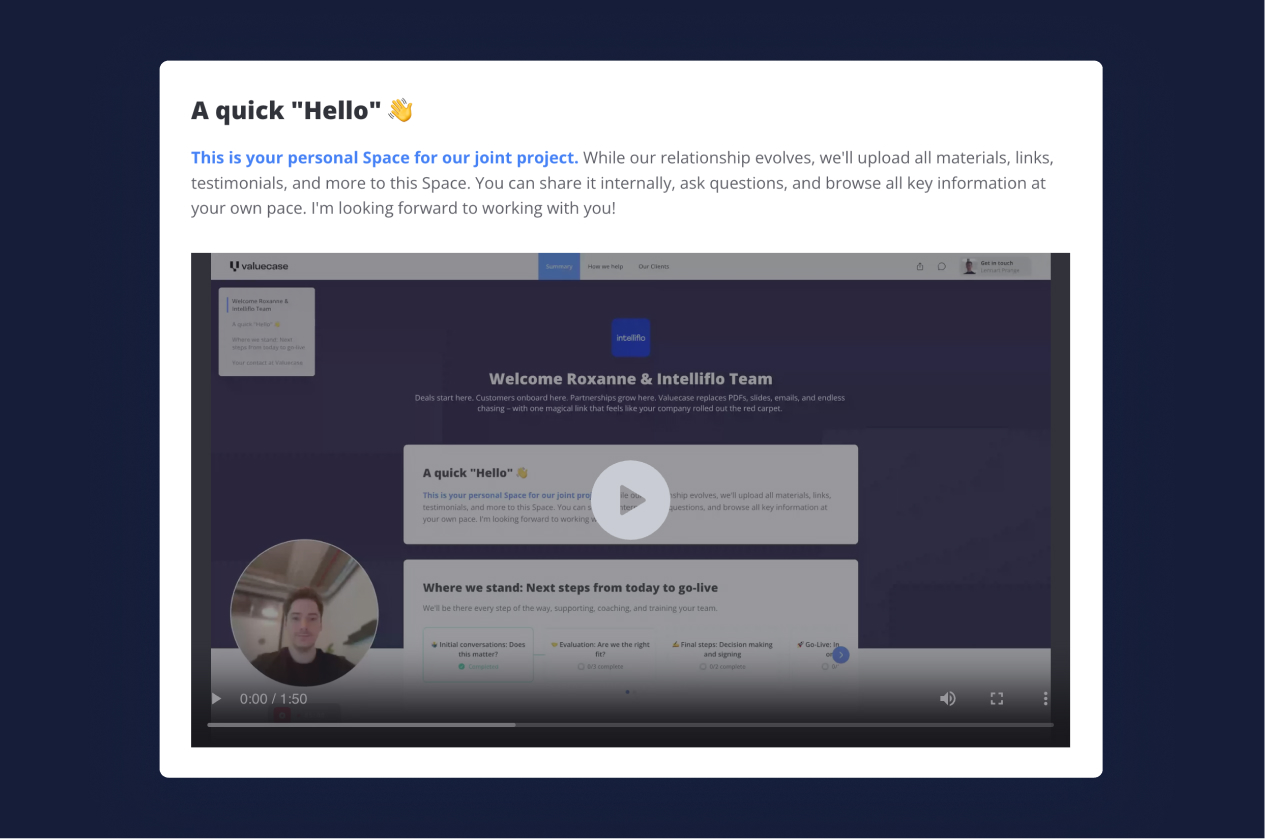
Keep the structure simple. Three to six pages is the sweet spot. Once a Space needs more – multiple plans, more content – lean on orientation blocks like a Next Task block or a Progress block so people always know where they stand instead of getting lost in navigation.
Turn on the Welcome Popup for extra context. It's a lightweight, one-time message shown the first time someone opens the Space – good for pointing to a contact person or a "start here" instruction without cluttering the page itself. Set it on the template level and it carries to every Space created from it.

Personalize with Space properties. Placeholders for company name, contact name, or custom fields (like purchased services or use case) make a Space feel built for that specific buyer rather than a generic template – and you can use the same properties to automatically show or hide pages that aren't relevant to them.
This matters even more when the Space won't be introduced live. The Space needs to explain itself.
2. Get the handoff right
How you introduce the Space determines whether it becomes "the place we work" or "one more link I'll get to eventually."
Screen-share it live whenever you can. In a kickoff call, a discovery call, any call – open the Space, walk through the task list, show what's in it. This does two things at once: it gives you buy-in on the spot, and it means the person has already seen and used the Space before they ever click the link on their own.
When you can't share it live, the invite email is extra important. Keep it short. Link to the Space clearly and early – don't bury it under a wall of text or attachments. Say what they'll find inside and why it matters.
Add a visual. Including a screenshot or preview image of the Space in the invite email measurably increases the odds someone clicks – it gives them something concrete to expect instead of a blind link. Use the "copy with thumbnail" option when copying your share link to generate one automatically.
Don't reinvent the wording every time. Build yourself a reusable invite template (in your CRM, in Gmail, wherever), or use the AI writing assistant's space-invite-email prompt to generate a clean first draft you can adjust.
If you have your own product, embed a link to the Space inside your app. We offer a widget that lets you show it alongside progress information.
3. Make the Space the source of truth
If you want people to keep coming back, give them no reason to go anywhere else.
Update the Space after every call – don't send a separate recap. Treat it as the living document, not an artifact you fill in once and forget.
Ask the AI agent: "Update the plan based on my last call." It marks the relevant tasks done and shifts dates that slipped, without you clicking through the plan by hand.
Pull the Space back up when it's useful – especially the action plan, and especially in a live meeting. Checking it against reality and confirming dates signals, without saying it, that this is where the work actually lives, not the inbox.
Stop attaching files to emails; put them in the Space instead. This also gives you much better tracking.
Send people to the exact spot that matters. Every file, block or task can be copied as a direct deep link. After a check-in call, instead of "check the workspace," send the direct link to the specific task or section you just discussed. It removes the "now where was that again" friction that quietly kills return visits.
4. Keep the conversation inside the Space, and use notifications
Valuecase gives you plenty of ways to notify and chat with your customer.
Use comments and @mentions as your default nudge. Instead of a status-check email, leave a comment on the relevant task or block and @mention the person – "hey, can you confirm this date still works?" It's conversational, it's tied to the actual work, and it triggers a direct notification to their inbox with a link straight back into the Space. Anyone who comments – or gets @mentioned – is added to that thread and notified of replies, so a single well-placed mention is often enough to keep someone looped in.
Ask Claude or ChatGPT with Valuecase connected: "Post a progress update to the Space based on my last meeting." It summarizes where things stand, posts it as a comment, and drafts the follow-up email – nothing sends until you approve it.
Turn on customer email notifications for the events that matter. Pick the ones that genuinely warrant an alert – a task assigned to them, a due date approaching, a milestone completed. Every notification is transparent: you can see in the space settings and activity feed exactly who's subscribed and what's been sent.
5. Check whether it's actually working, and act on what you find
You don't have to guess whether a Space is landing. Valuecase tracks it – use that.
Check the Engagement Score. Every Space gets a rolling 14-day score (Low, Medium, High – or N/A with no recent activity) right in your space list. It's your fastest way to see which relationships are healthy and which need attention now.
Ask Claude or ChatGPT with Valuecase connected: "Give me this week's status across my active Spaces – what's stalled, what needs a nudge." It flags the at-risk accounts across your whole book of business before you'd catch them scrolling your space list one by one.
Read the Activity Feed, in the Space and in your dashboard. It shows exactly what's been opened, watched, completed, and ignored – by session, so you can see not just whether someone visited but how deep they went.
Use the Content Analytics Dashboard to fix the template, not just the one Space. If a page or block consistently gets skipped across many Spaces, that's a template problem, not a one-off. Cut or rework what's ignored; double down on what people actually engage with.
Run a quick self-audit before you hit share. Before sending any Space, ask: would a stranger understand what this is and what to do next within ten seconds of landing on it? Is there one obvious next action, not five competing ones? Is it still under six pages? Is everything in it current? A minute spent here catches most of what causes a Space to fall flat before it ever reaches your buyer.
Ask the AI agent: "Review this Space as if you'd never seen it – is the purpose clear within ten seconds, is there one obvious next step, is anything out of date or missing?" It'll point out what a first-time visitor would trip over, before your customer does.
Run it like a process, not a document
The teams who get the most out of a shared Space run it like a process, not a document – they design it well once, hand it off deliberately, keep it current, and check the data instead of assuming it's fine. And to make that easier, you can use our AI agent, or Claude and ChatGPT via our connectors, to run most of the busywork for you.
Got a question on any of this, want a review of your template, or have an idea to share? Reach out – we'd love to hear it.


