Valuecase is listed in Claude's connector directory, so there's no custom connector to set up. Open it here:
Valuecase in the Claude directory
2
Connect and sign in.
Click Connect and sign in with your Valuecase account and you will be all set.
3
Ask Claude to create a Space.
Ask Claude to build a template or write content in a Space.
1
Open the Valuecase app
Valuecase is in the ChatGPT app directory – no developer mode, no manual setup. Open it here:
Settings > Plugins
2
Connect and sign in.
Sign in with your Valuecase account and you will be all set.
3
Connect and sign in.
Now ask ChatGPT to build a template or write content in a Space.
1
Open Connector Settings
In your AI tool, find where it manages MCP servers or connectors (usually under Settings → Connectors, Integrations, or MCP). Choose to add a new custom connector / MCP server.
2
Add the Valuecase connector
Name it Valuecase and paste the server URL:
https://mcp.valuecase.com/mcp
3
Connect and sign in.
Choose OAuth and sign in with your Valuecase account. If your tool asks for a client registration method, pick Dynamic Client Registration (DCR). Now ask your AI tool to create a Space, build a template, or write content in an existing Space.
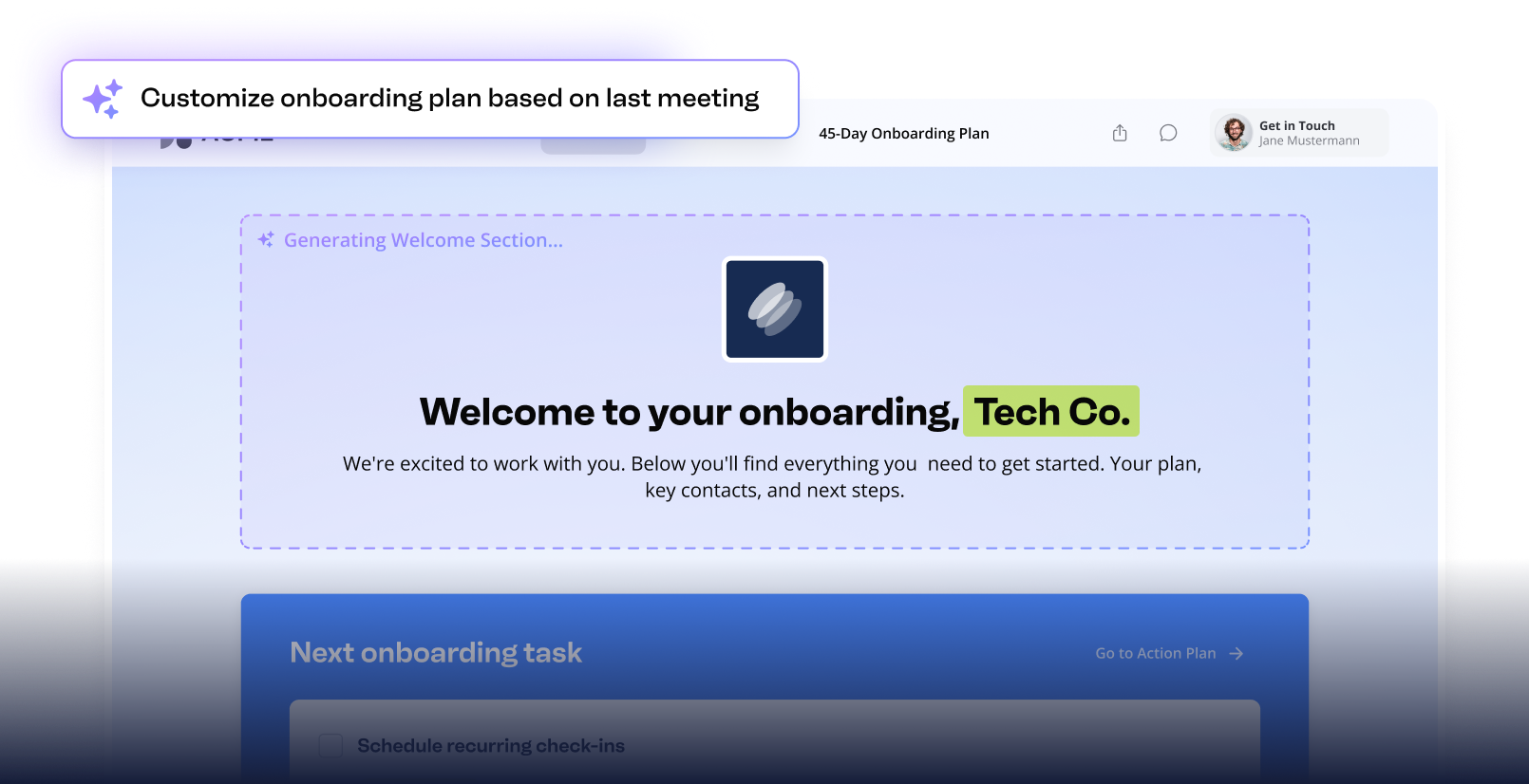
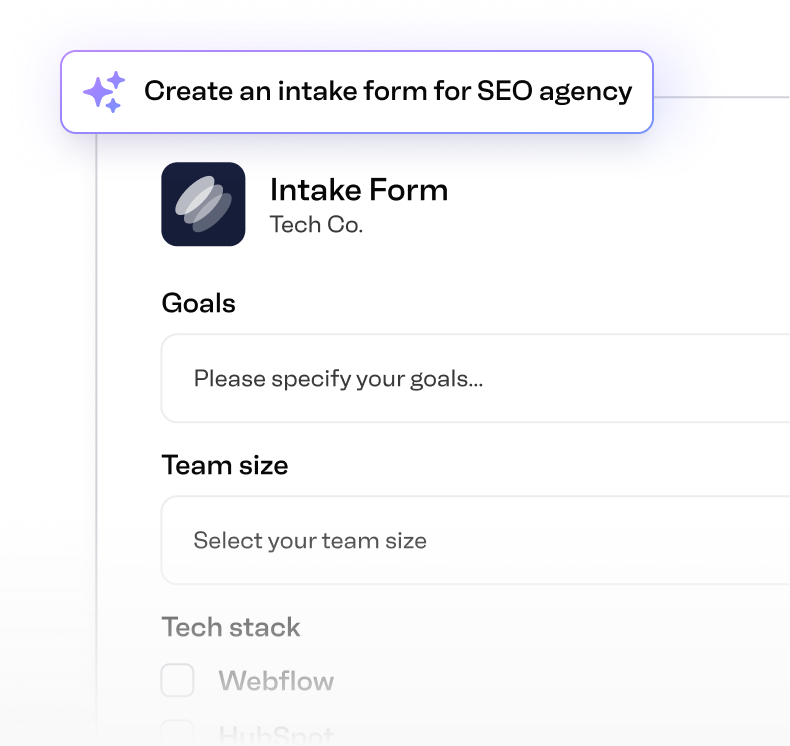
The Valuecase MCP is a Model Context Protocol server that connects your AI tools like Claude and ChatGPT to Valuecase. Valuecase is listed in the Claude connector directory and the ChatGPT app directory, so there is nothing to configure. Once connected, you can create Spaces, write and edit the content inside them, and build whole templates – directly from your prompts, without leaving your AI workflow.
Which AI tools work with the Valuecase MCP?
Any AI tool that supports the Model Context Protocol works with the Valuecase MCP, including Claude, ChatGPT, Cursor, and custom agents. If your tool supports MCPs, it can connect to Valuecase – even if it isn't listed in the setup instructions.
How do I connect the Valuecase MCP?
In Claude, open the Valuecase connector in the connector directory. In ChatGPT, open the Valuecase app in the app directory. Click Connect and sign in with your Valuecase account – no custom connector needed. For any other MCP-capable tool, add https://mcp.valuecase.com/mcp as a custom connector and sign in with OAuth. You can then ask your AI tool to create a Valuecase Space, write and edit content inside it, build a template, update tasks, or pull onboarding data.
What can I do with the Valuecase MCP?
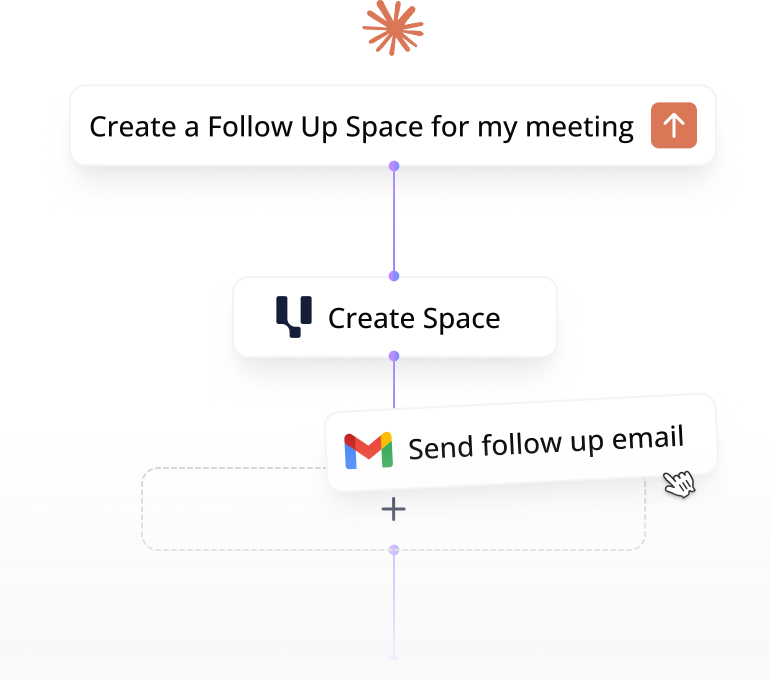
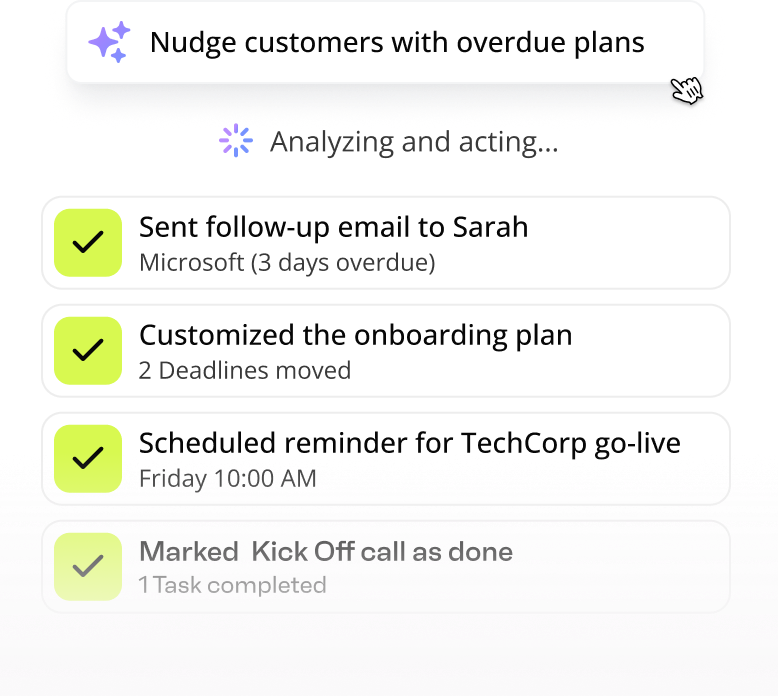
You can create and personalize Valuecase Spaces, write and edit the content inside them, build templates, manage customer onboardings, and chase customers with follow-ups – all from a prompt.
Does the Valuecase MCP cost extra?
No. The Valuecase MCP is included in all Valuecase plans at no extra cost.
Is my data safe when I use the Valuecase MCP?
Yes. The Valuecase MCP authorizes through your own Valuecase account, so your AI tool only accesses data you already have access to. Valuecase never trains LLMs on your customer data, and you can turn off AI features at any time.