


Jump to section
Your AI Tool Now Writes the Content, Not Just the Space
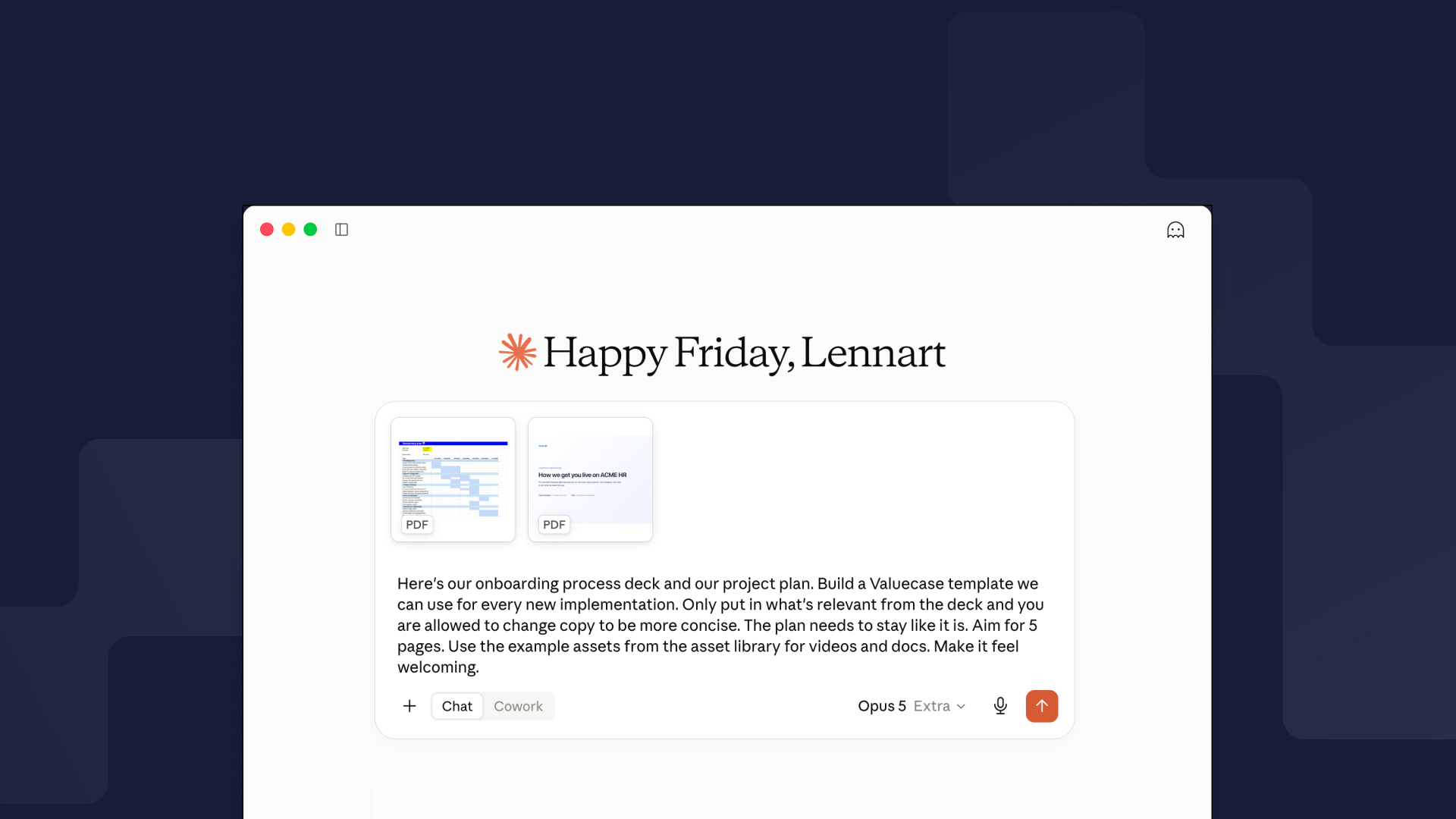
Your AI tool can now create and edit the content inside your Valuecase Spaces – pages, action plans, forms, templates, all of it. Not just set them up: write them.
In May we shipped the Valuecase MCP, and Claude, ChatGPT, Cursor or any other MCP-capable AI tool could create and manage Spaces. It quickly became one of the most used things we've built. Until now, that meant your AI tool could create a Space from a template, set due dates and assignees, and handle the metadata. But the content itself – the pages, blocks and plans your clients actually see – you still wrote yourself.
That changes today. Connected to Valuecase, your AI tool can now:
Create content – pages, content sections, action plans with milestones and tasks, forms, file lists, team cards, accordions, next task and progress blocks.
Edit what's already there – rewrite a section, add tasks to a milestone, reorder blocks, delete what doesn't apply, hide what a particular client shouldn't see.
Build whole templates – from scratch, or as a copy of an existing one. Not just a one-off Space, but the reusable blueprint your whole team works from.
Insert content from your Asset Library – the decks, one-pagers and case studies you already have, placed into the right page.
Set visibility rules in templates – so one template serves every segment, showing each client only the pages that apply to them.
And text your assistant writes into placeholders is now normal editable rich text in the editor. Previously, formatted placeholder content was effectively locked once it landed. Now you can adjust and reformat it like anything else.
Why the Output Actually Looks Right
The hard part of letting an AI write into a product isn't the writing. It's that AI-generated structure usually looks generated.
So the Valuecase MCP ships with a built-in content guide. Before it writes anything, your assistant reads how Valuecase content is meant to be organised: which block types exist and what they're for, how pages are normally structured, how many milestones belong in a plan, what a good action plan looks like.
The result is that you describe an outcome rather than specifying a layout. Ask for "a mid-market onboarding template with an intake form, a five-milestone plan ending in Go-Live, and a resources page" and you get something that looks like a person on your team built it.
Two prompts to start with:
- "Build a mid-market onboarding template with an intake form, a five-milestone plan ending in Go-Live, and a resources page."
- "Read this meeting transcript, then add a recap page to Acme's Space and add the action items we agreed as tasks in their implementation plan."
Use cases to try:
- Build a customer onboarding hub – a full multi-page onboarding Space from one prompt
- Translate this template – every page and block, placeholders left intact
- Create Spaces from Claude or ChatGPT – the starting point if you haven't connected yet
How to Connect Claude or ChatGPT to Valuecase
Valuecase is now listed in both stores, so there's no custom connector to configure and no URL to paste:
- Claude – open the Valuecase connector, click Connect, sign in with your Valuecase account.
- ChatGPT – open the Valuecase app, enable it, sign in.
- Any other MCP-capable tool – add https://mcp.valuecase.com/mcp as a custom connector. See the Valuecase MCP page.
Already connected? Refresh the tools in your AI tool's MCP settings to pick up the new content actions.
Complete a Block: Turn Any Content Into an Onboarding Step
Onboarding steps don't only live in the action plan. Often the thing the client has to do is the content: watch this video, review the pricing table, upload your data.
Any content block can now be linked to a single task in an action plan. Once linked, the block shows a "Mark as completed" button right where the work happens. Ticking it checks off the task, and checking the task off in the plan updates the block.
- Set it up in the block sidebar under Settings → Task connection, then pick action plan, milestone and task.
- Works with Title, Content, Interactive List, Files, Testimonials and Table blocks.
- A "Go to Block" quick action is added to the linked task by default, so people can jump straight to the content.
- Block navigation shows which linked blocks are still open and which are done.
- In templates the controls appear but stay disabled – completion only works in real customer Spaces.
The task stays the source of truth, so due dates, assignees and your existing action plan progress all keep working exactly as before.
Out of Office Mode
Going on holiday and don't want a client wondering why nobody replied?
Switch on out of office in your profile settings, set your dates and a short message, and every Space you own shows your clients a banner telling them when you're back. Admins can switch it on for someone who forgot before they left.
Task Activity History
The task detail view now has an activity history, for internal users only.
It shows who changed what and when – task completions, reopens, and changes to due dates and descriptions – with internal activity badged so you can tell your team's actions apart from the client's. Your clients never see it.
Useful when a go-live date has moved three times and nobody remembers who moved it.
Smaller Improvements
Hidden items in Next Task, Gantt and Progress blocks. These three blocks now leave hidden action plans and milestones out by default, with a per-block setting to show them anyway. When shown, hidden items are visible but not clickable – you can see that something exists and how it's progressing, but not drill into it. Action plans that live on internal pages can no longer be surfaced on client-facing pages at all.
Archive or delete a template from inside it. Template settings → General Settings now has a Manage Template card, the same as Spaces have. Archiving makes a template unavailable for new Spaces without touching existing ones; deleting doesn't delete the Spaces built from it, they just lose the link.
German informal (Du) is now selectable as a template language.
New placeholders for space owner name and meeting link, so one template can carry the right person's details and booking link for whoever owns the Space.
Multi-file upload. You can now select and upload several files at once, both in the Asset Library and directly into files and media blocks. Building out a resources page no longer means uploading one document at a time.
FAQ
What is the Valuecase MCP?
The Valuecase MCP is a Model Context Protocol server that lets AI tools like Claude and ChatGPT work directly inside Valuecase, the customer onboarding platform. Once connected, your assistant can create Spaces and templates, edit content, and manage onboarding plans on your behalf.
How do I connect Claude or ChatGPT to Valuecase?
Valuecase is a one-click install in both the Claude connector directory and the ChatGPT app directory. Open the Valuecase connector in either store, enable it, and sign in with your Valuecase account. Other MCP-capable tools connect via the MCP URL at valuecase.com/mcp.
Do I need to reconnect Valuecase to my AI tool?
No, but refresh the tools in your AI tool's MCP settings so the new content actions show up.
Can my AI tool edit content in a live customer Space?
Yes. It can create, edit, reorder and delete content in both Spaces and templates, with your permissions. Review before you share, the same as you would with anything else.
Can it upload files?
No. It can insert items that already exist in your Asset Library, but new files still need to be uploaded in Valuecase.
Which AI tools does this work with?
Any tool that supports MCP. Valuecase is a one-click install in the Claude connector directory and the ChatGPT app directory, and works with Cursor, Claude Code and custom agents via the MCP URL.
Does this cost extra?
No. The Valuecase MCP is included in all Valuecase plans.
Can a client complete a block, or only my team?
Both. Anyone viewing the Space who can complete the linked task can complete the block.
Which blocks can be linked to a task?
Title, Content, Interactive List, Files, Testimonials and Table. Forms, action plan blocks, collaborative text boxes, calculators and Kanban blocks can't be linked.


